
Media Manager | CoreCMS guides
Media Manager stores the images and documents used by your website. Open it from the administration sidebar or through a media picker in a page, form or plugin.
How to use it
- Open Media and select the correct folder.
- Upload a supported file or choose an existing one.
- Use the context menu to preview, rename, move, download or edit a file where supported.
- Review image metadata, including alternative text and decorative status.
- Return to the page or plugin picker and confirm the file you want to use.
- Save the content and check it on the public website.
Before you finish
Use descriptive file names and keep a consistent folder structure. Files in public media folders can be reached by their URL, so do not upload confidential documents there. Supported operations and file limits depend on the server.
Related guides
- Finding folders and media
- Creating and managing media folders
- Uploading and managing files
- Resizing, cropping and rotating images
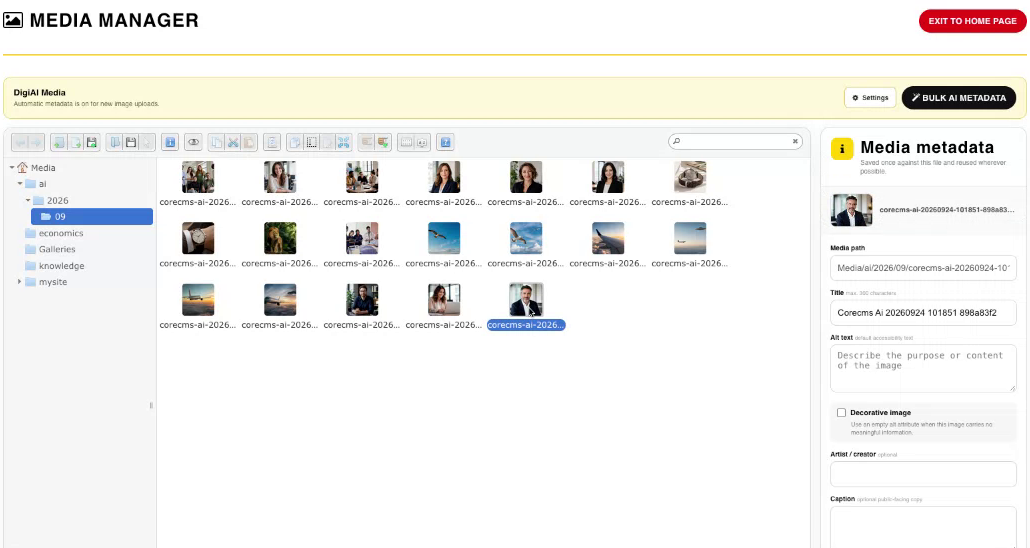
Media Manager, folders and image metadata. Select the image to view it at full size.
- Accessing CoreCMS
- Understanding the CoreCMS interface
- The administration sidebar
- Using the page builder
- Containers, rows and columns
- Adding and editing components
- Page-specific settings
- Saving and publishing changes
- Before you publish
- Desktop, tablet and mobile layouts
- Managing columns and alignment
- Saved Blocks and reusable layouts
- Buttons and linked content
- Page revisions and restoring content
- Duplicating a page
- Media Manager
- Plugins and modules
- Getting help with CoreCMS
- CoreCMS: start here
- CoreCMS Form Builder
- Website Analytics
- Managing website search
- DigiSEO: checking a page
- DigiAccess accessibility toolbar