
Adding a container | CoreCMS guides
Add a container when you need a new section of the page.
How to use it
- Open the page builder’s container chooser.
- Choose a suitable column layout.
- Insert or drag the container into the required page position.
- Add components inside its columns.
- Adjust spacing and background settings if required.
- Check each device view and save.
Before you finish
Keep new sections consistent with the website’s existing widths and spacing. Avoid creating empty containers just to add vertical space.
Related guides
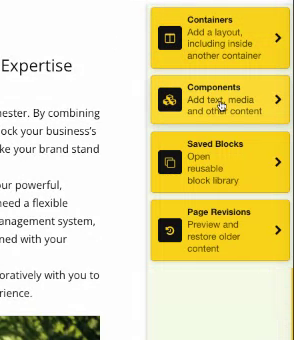
Page builder options for Containers, Components, Saved Blocks and Page Revisions. Select the image to view it at full size.
- Accessing CoreCMS
- Understanding the CoreCMS interface
- The administration sidebar
- Using the page builder
- Containers, rows and columns
- Adding and editing components
- Page-specific settings
- Saving and publishing changes
- Before you publish
- Desktop, tablet and mobile layouts
- Managing columns and alignment
- Saved Blocks and reusable layouts
- Buttons and linked content
- Page revisions and restoring content
- Duplicating a page
- Media Manager
- Plugins and modules
- Getting help with CoreCMS
- CoreCMS: start here
- CoreCMS Form Builder
- Website Analytics
- Managing website search
- DigiSEO: checking a page
- DigiAccess accessibility toolbar