
Publishing and testing a form | CoreCMS guides
The form shortcode connects a saved form to a page. Its status controls whether the form is active and whether it appears in an A–Z listing.
How to use it
- Copy the exact shortcode shown for the form, such as
- Place it in the page’s supported content area.
- Choose Live, published in A–Z or Live, excluded from A–Z as appropriate.
- Save the page and open it while signed out.
- Complete valid and invalid test submissions.
- Check the success message, recipient email, uploads and stored entry where enabled.
Before you finish
Live, excluded from A–Z still allows the form to work through its shortcode. Offline is the inactive state. Test again after changing conditional rules or email templates.
Related guides
- CoreCMS Form Builder
- Form fields and validation
- Conditional fields in forms
- Form notifications and custom emails
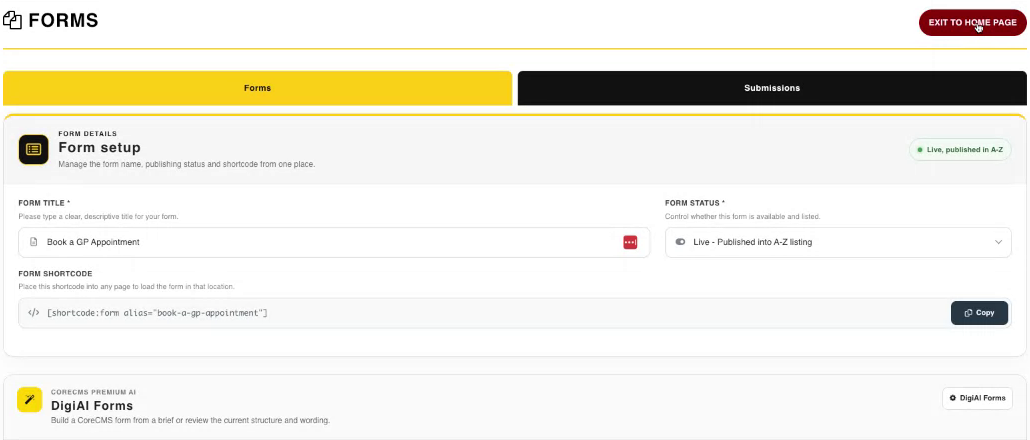
Form setup, status and shortcode. Select the image to view it at full size.
- Accessing CoreCMS
- Understanding the CoreCMS interface
- The administration sidebar
- Using the page builder
- Containers, rows and columns
- Adding and editing components
- Page-specific settings
- Saving and publishing changes
- Before you publish
- Desktop, tablet and mobile layouts
- Managing columns and alignment
- Saved Blocks and reusable layouts
- Buttons and linked content
- Page revisions and restoring content
- Duplicating a page
- Media Manager
- Plugins and modules
- Getting help with CoreCMS
- CoreCMS: start here
- CoreCMS Form Builder
- Website Analytics
- Managing website search
- DigiSEO: checking a page
- DigiAccess accessibility toolbar